Read QR Code from Image
Scan QR codes from a photo or screenshot right on your computer or phone.
or drag and drop here · Ctrl+V to paste
Processing…
Processed on your device. Your files aren't uploaded to any server.
How to use: Read QR Code from Image
- Select or paste (Ctrl+V) an image or screenshot containing a QR code.
- Click Scan QR Code.
- Copy the content or open the link.
About this tool
When scanning a QR code on your computer helps
- You received a screenshot or PDF with a QR code and are viewing it on the same device—you can’t point the camera at your own screen.
- You want to check where the link goes before opening it on your phone, especially for payment requests, bills, and posters.
- You need to copy the content (such as payment details, a Wi-Fi password, or text) to paste somewhere else.
If the QR code isn’t detected
- Crop the image so it shows only the code and a little margin—busy photos can make detection harder. Our image cropper gets it done in seconds.
- Use a sharper, straight-on photo without glare. Crooked or tilted codes can be harder to scan.
- If the photo is dark or low-contrast, adjust it with brightness and contrast, then try again (we automatically check codes with inverted colors).
- Standard barcodes (such as those on bills or products) aren’t QR codes. For bills, use our bill reader.
Frequently asked questions
Is it safe to open a QR code link?
Always check the URL before opening it. Scammers may place fake QR codes on posters or bills. We show you the full link before you decide to open it.
Can it read payment QR codes?
Yes. If the QR code contains payment details, review the recipient and amount before you pay.
Can I scan a Wi-Fi QR code to see the password?
Yes. The content appears as text in this format: WIFI:T:WPA;S:network-name;P:password;; — the password is the part after P:. Only use this on networks you’re authorized to access.
Can I scan multiple QR codes at once?
You can select multiple images, and we’ll scan them one at a time and combine the results in a .txt file. If an image contains several codes and one is missing from the results, crop each code separately.
Are my files uploaded to a server?
No. This tool runs entirely in your browser: your file is read and processed on your device, and not a single byte is sent over the internet. You can even disconnect from the internet after the page loads.
Is it really free? Is there a daily limit?
It's free with no daily limits. Processing happens on your device, so there's no per-use cost and no need to limit you.
Does it work on phones?
Yes. The site works in any modern browser on Android, iPhone, Windows, Mac, and Linux—no installation needed.
Related tools
 QR Code Generator
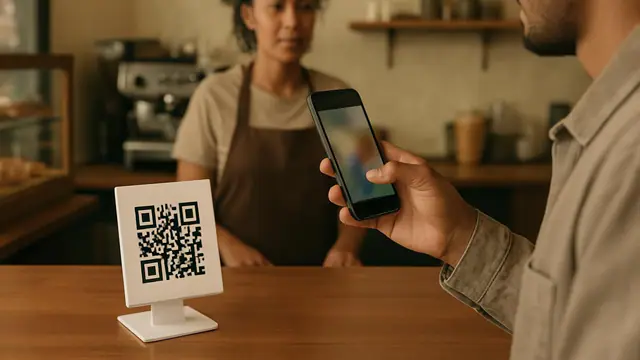
Create QR codes for links, Wi-Fi, WhatsApp, email, and text.
QR Code Generator
Create QR codes for links, Wi-Fi, WhatsApp, email, and text.
 Extract text from image
Copy text from photos, screenshots, and scanned documents with OCR.
Extract text from image
Copy text from photos, screenshots, and scanned documents with OCR.
 Compress image
Reduce the file size of JPG, PNG, and WEBP photos without noticeable quality loss.
Resize image
Change image width and height in pixels or by percentage, in batches.
PNG to JPG
Convert PNG images to JPG in batches without losing quality.
WEBP to JPG
Convert WEBP images to JPG in batches without losing quality.
Compress image
Reduce the file size of JPG, PNG, and WEBP photos without noticeable quality loss.
Resize image
Change image width and height in pixels or by percentage, in batches.
PNG to JPG
Convert PNG images to JPG in batches without losing quality.
WEBP to JPG
Convert WEBP images to JPG in batches without losing quality.
 HEIC to JPG
Convert HEIC images to JPG in batches without losing quality.
HEIC to JPG
Convert HEIC images to JPG in batches without losing quality.
 Crop image
Crop photos freely or choose an aspect ratio like 1:1, 4:3, or 16:9.
Crop image
Crop photos freely or choose an aspect ratio like 1:1, 4:3, or 16:9.